
Turn your photos
into a finished piece.
Open Create and choose a visual card, visual story or photo wall. Start with a template, bring in photos from your iPhone or SuperRoll, and make the layout your own.
Explore Create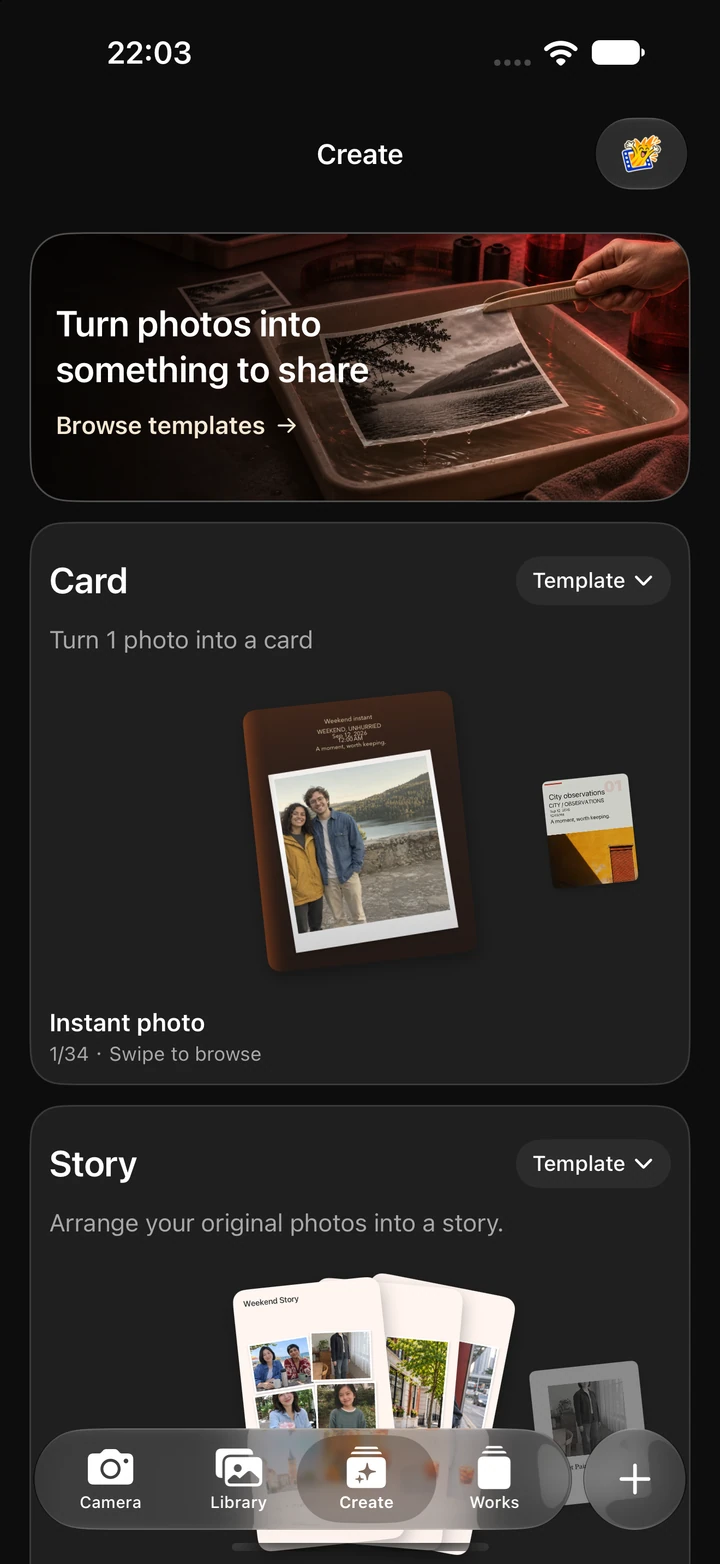
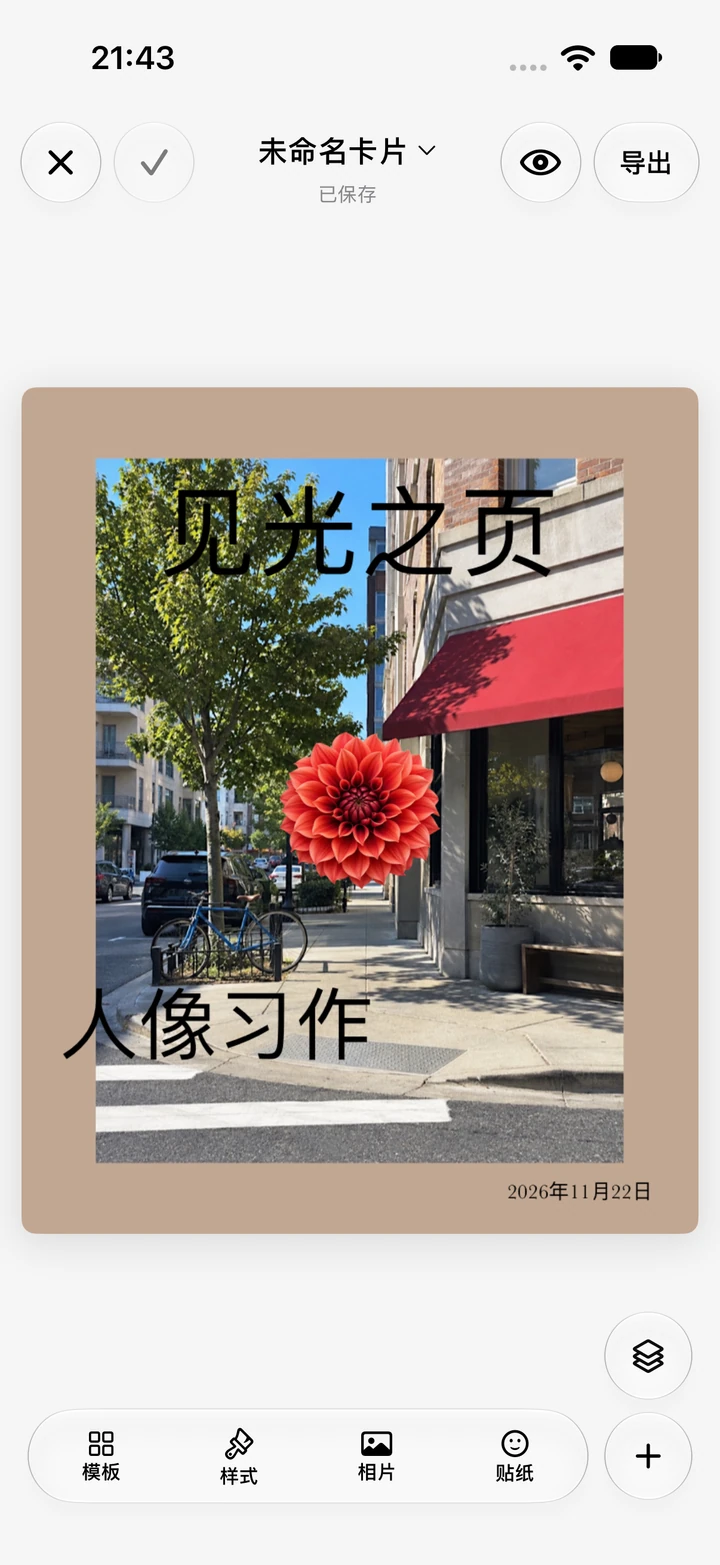
Make a visual card from one photo.
Choose a postcard, calendar or another template. Move and resize the photo, edit the text and adjust the paper, frame and colors.
Give a visual story more room.
Choose an aspect ratio, then start with a blank canvas or a template. Add pages, place photos and text, and arrange the layers as your story takes shape.
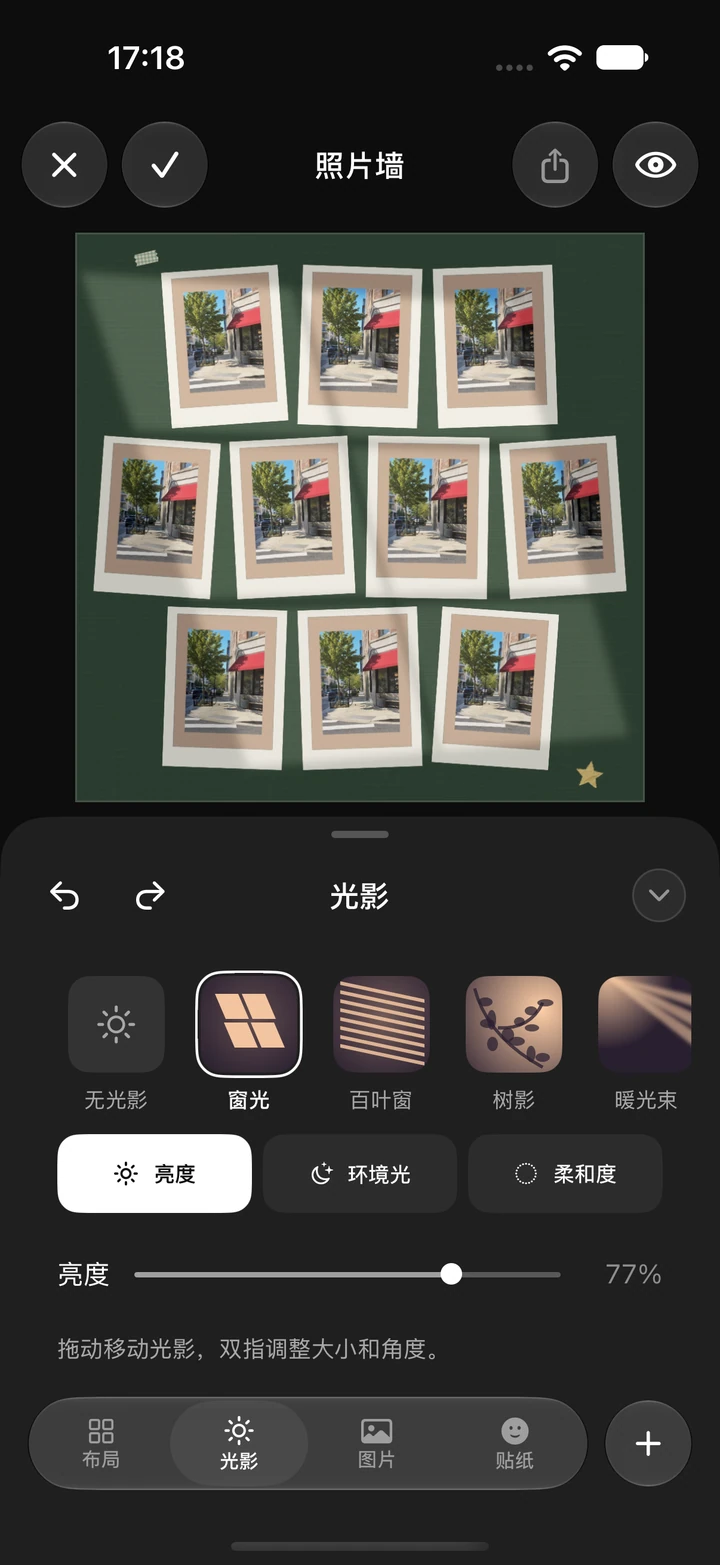
Put a group of photos on one wall.
Select several photos and preview them in square or landscape layouts. Once in the editor, change the arrangement, move or resize photos, and adjust the layout details.
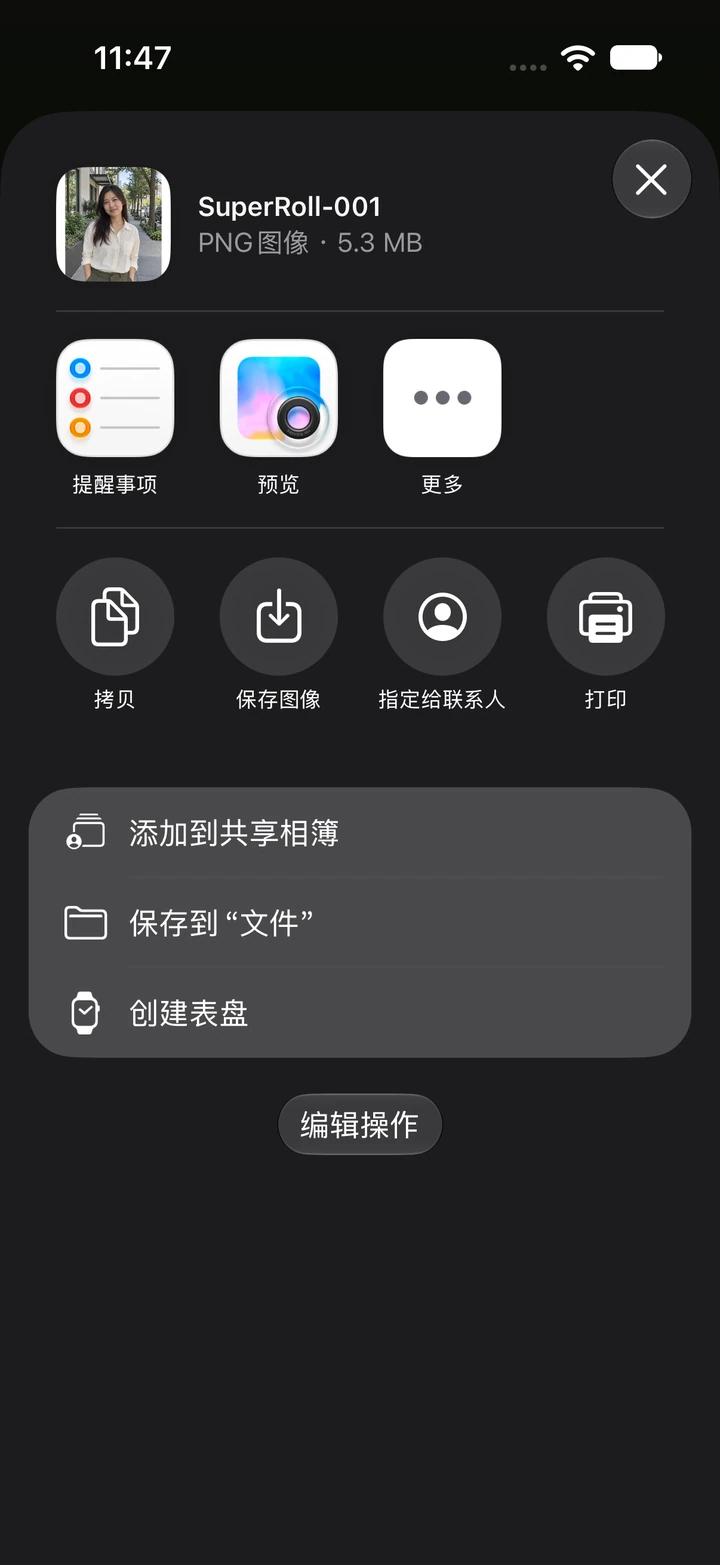
Save a project and share the result.
Reopen a saved project in Works to keep editing. Share a card or photo wall as an image. For a visual story, share the current page or send all pages as separate images.
Common questions
Where is the shortcut to start a new project?
Tap the plus button in the bottom navigation to start a visual card or story.
How can I keep an editable copy?
Keep the project in Works, or export an editable project backup that you can import into SuperRoll later.