
Find the photo.
Give it another look.
Open a SuperRoll photo or choose an image from your iPhone. Try a film look, adjust exposure and color, or crop the frame. You can compare your edit with the original as you work.
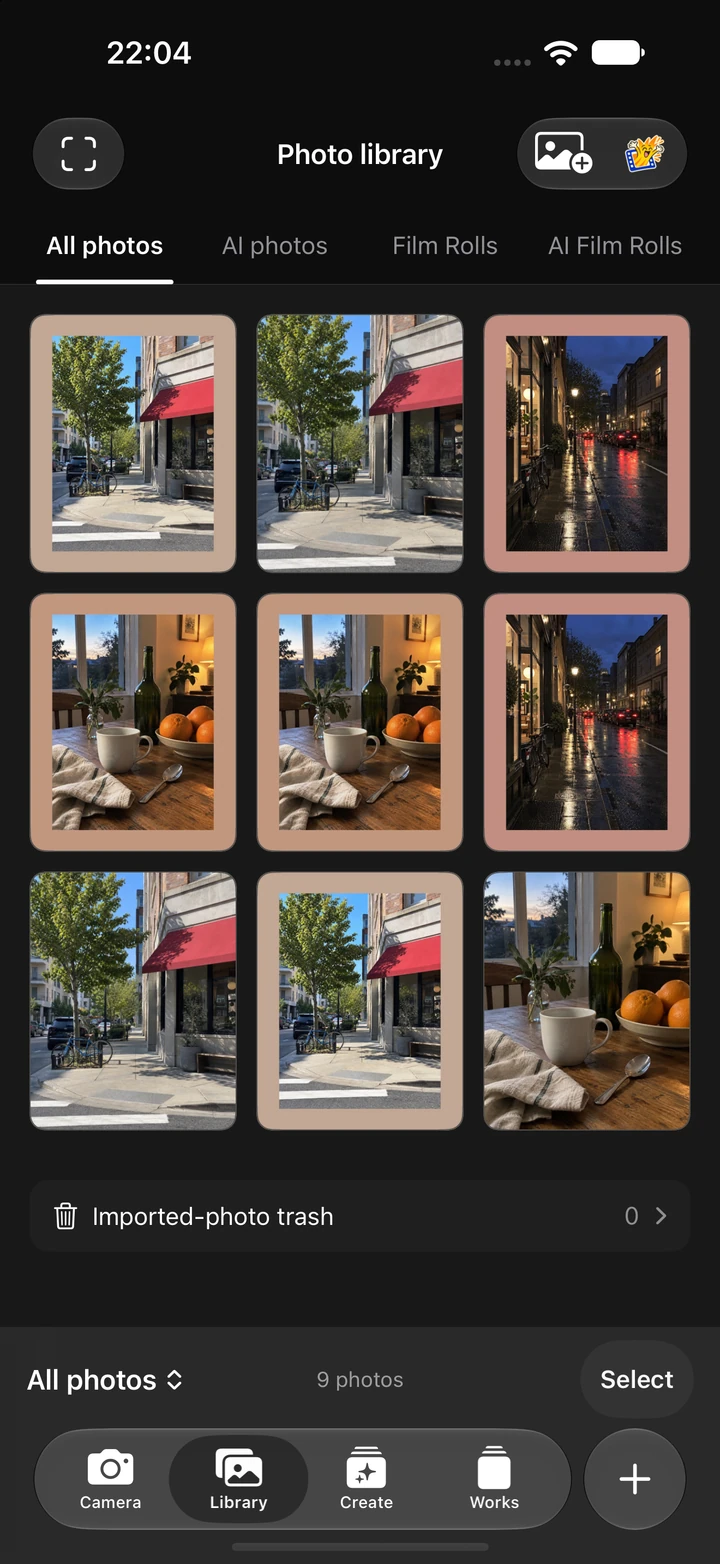
See the photo library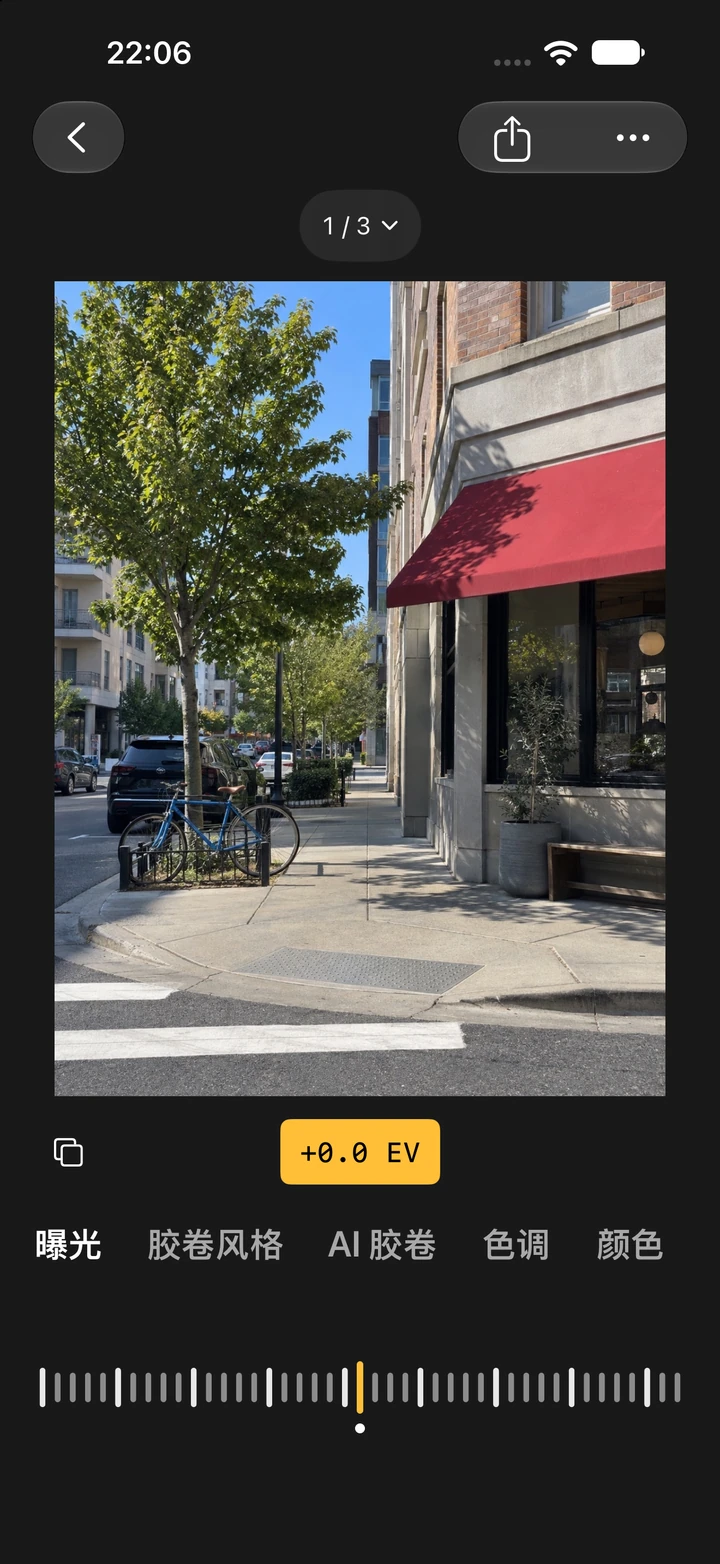
Browse by capture date or film.
All Photos brings your SuperRoll captures and imports into one chronological grid. Open the film view to find a group of photos with the same look, or use filters and search to find a specific image.
Try a film on a photo you already have.
Choose an iPhone photo, apply an on-device film and adjust its strength. You can save the result to SuperRoll. For a photo taken with SuperRoll, the app can use the original capture to develop another film version.
Keep the original and return to previous edits.
Within the SuperRoll library, edits are saved as separate versions. Open the photo’s menu to view the original or version history, share the current image, or save it to Apple Photos.
Common questions
Can I browse just my favorites?
Yes. Mark photos as favorites, then choose Favorites only in the SuperRoll library filters.
Can I put the oldest photos first?
Open the filters and sorting controls to switch All Photos from newest to oldest capture date.